Threads Unfollow Tracker: See Who Unfollowed You (2026)
Threads does not have a page that lists everyone who stopped following you. If your follower count keeps dropping and you want names, not just numbers, you have to pull that information out yourself. The good news is that Meta already gives you this data for free. You just need to know where to find it and how to read it. This guide walks through the whole process, from requesting your data to actually spotting who left.
Does Threads Tell You Who Unfollowed You?
No, not directly. Threads shows your current follower and following counts, and it keeps a record of profiles you blocked or unfollowed yourself, but it never shows you who stopped following you. There is no "recent unfollowers" screen anywhere in the app. Most social apps leave this feature out on purpose, since it tends to make people check obsessively instead of actually using the app.
That is why every Threads unfollow tracker, including this one, works the same way. It does not pull live data from Threads servers. Instead it reads the official data file Meta already lets you download, and compares your follower list against your following list, or compares two exports taken at different times.
One Export or Two? A Simple Example
Here is the part most people get confused about first. A single Threads data export only shows you a snapshot, meaning the people who follow you and the people you follow right now, today. It can't tell you who unfollowed you last week, because that person is simply missing from the list, with no record that they were ever there.
Say you have 500 followers today and you download your data. Next month you check again and you have 480. Your one export from today only tells you who is in your following list that is not following back right now. To actually see the 20 names that disappeared, you need a second export from next month, then compare the two follower lists side by side.
This is the same logic every unfollow tracker uses, whether it's for Instagram, Twitter, or Threads. One export gives you a non-followers list. Two exports, taken apart in time, give you an actual unfollow history. You can use the same idea with our Instagram Unfollow Tracker if your Instagram export is ready.
How Do You Download Your Threads Followers List?
There are two separate ways to request this data, and they don't give you the exact same thing. One route goes through the Threads app directly, and the other goes through Instagram's Accounts Center. Picking the wrong one can leave you missing data you actually needed, so it helps to understand both before you start.
Method 1: From the Threads App
Open Threads, go to your profile, tap the menu, then Settings, then Account, then Download information. Threads explains what is included, and once you confirm, it builds a ZIP file you download straight to your device. This method only includes your Threads data, not your Instagram data, even though both accounts are connected.
Method 2: Through Instagram's Accounts Center
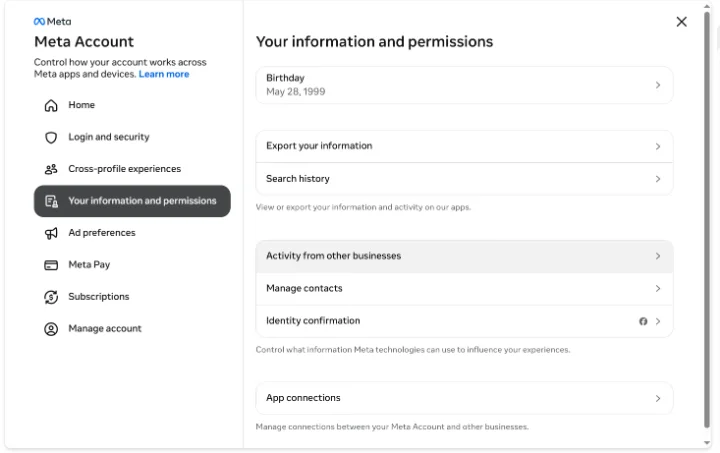
This is the route most people should use. Open Instagram (app or browser), go to Settings → Accounts Center → Your information and permissions, then start an export. Each step below pairs the action with the matching screen.
Step 1 — Open Your information and permissions. In Accounts Center, open Your information and permissions, then choose Export your information (some screens say Download).
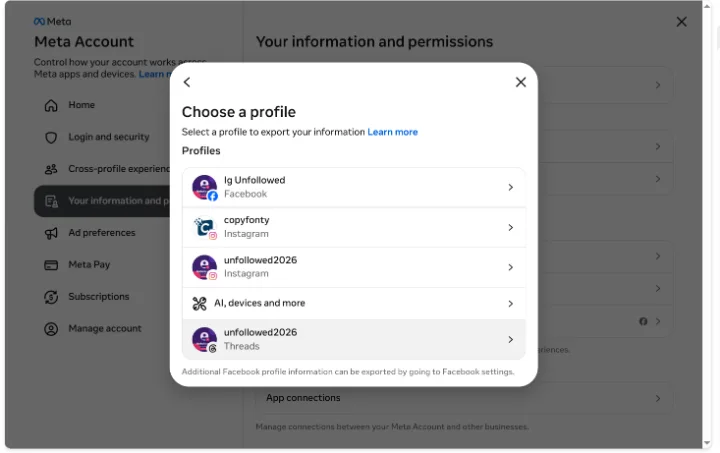
Step 2 — Choose your Threads profile. When Meta asks which profile to export, select your Threads account specifically — not only Instagram — so follower data for Threads is included.
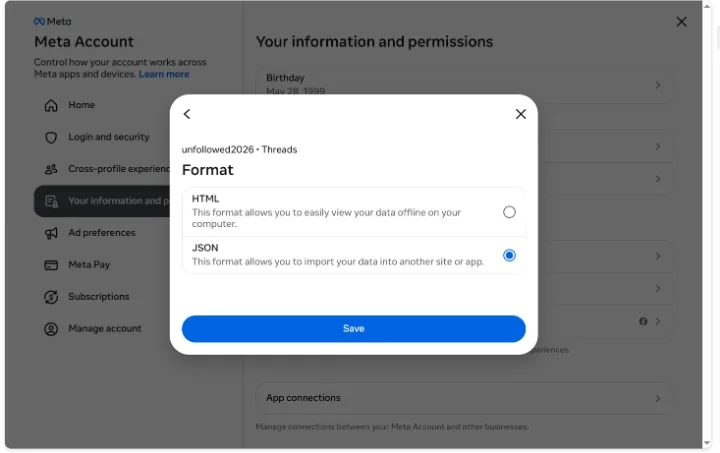
Step 3 — Pick JSON format. Under export options / customize information, keep the Threads-related data you need and set the format to JSON (recommended for this tool). HTML also works, but JSON is cleaner.
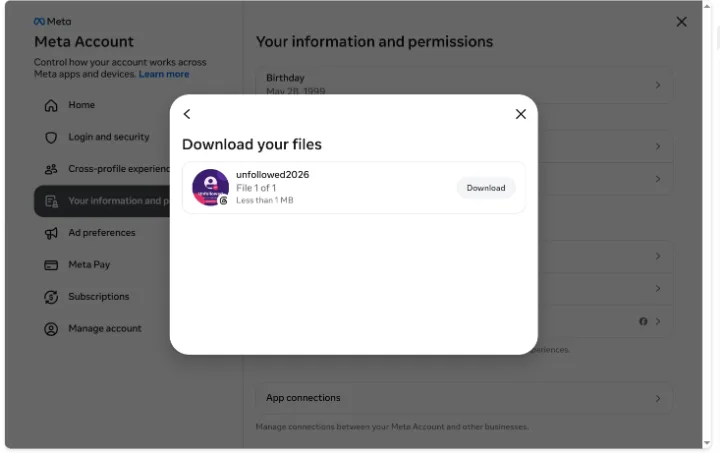
Step 4 — Request, then download the ZIP. Submit the export. When Meta emails you (or shows Available downloads), open the ready export and download the ZIP to your device. Same flow works on desktop if you prefer a laptop — see also our Instagram export guide.
| Method | Where you request it | What you get | Works on desktop? |
|---|---|---|---|
| Threads app | Settings > Account > Download information | Threads data only | No, app only |
| Instagram Accounts Center | Settings > Accounts Center > Download your information | Threads data (can include Instagram too) | Yes |
Either way, Meta does not deliver the file instantly. You get an email, usually titled something like "Your Threads Data," with a link to download the ZIP once it's ready. For most people this takes a few minutes to a few hours, though Meta's own help pages mention a longer wait of up to 30 days in rare cases.
Where Is Threads Follower Data Inside the Export?
Once you unzip the download, the file names are not always obvious. Different guides online describe this part differently, which is exactly why it pays to be careful here instead of trusting one source blindly. Here is what to actually look for, along with a note on where the information conflicts.
| File (name can vary by export) | What it usually contains |
|---|---|
followers_and_following.json, or separate followers.json / following.json | Your followers and following lists, sometimes combined into one file, sometimes split, depending on the export |
blocked_and_unfollowed.json | Profiles you personally blocked or unfollowed |
threads_and_replies.json | Your own posts and replies |
profile.json | Your basic profile information |
Why File Names Don't Always Match
Sources genuinely disagree on whether Threads gives you one combined followers-and-following file or two separate ones. Don't be surprised if your export looks different from what another article describes. The safest move is to open whatever JSON file you get and check its structure yourself before assuming anything, since Meta has changed export formats before without much notice.
Don't Confuse blocked_and_unfollowed.json With Unfollowers
The blocked_and_unfollowed.json file's name makes it sound like a list of people who unfollowed you, but it's actually the opposite. It only holds accounts that you personally blocked or unfollowed, not accounts that left you. Treating it as an unfollowers list will give you completely wrong results, so skip it when you're trying to find out who stopped following you.
Why Do Some Threads Unfollower Tools Show Display Names Instead of Usernames?
Every account in your export carries both a username and a display name, and the display name is the one most people barely bother to fill in properly. It's often missing, outdated, or set to something unrelated like an emoji or a nickname. Some tools default to showing the display name anyway because it looks friendlier in a list. The problem is that display names are not unique and can be changed at any time, so two different accounts can end up looking identical in a results list.
A tool built properly should always lead with the username, since that's the one fixed identifier tied to the account. The display name can sit next to it as extra context, not as the main label. If you're comparing a tool's results against your own memory of who follows you, check the username first before assuming an unfamiliar name means a stranger unfollowed you.
How Do You Actually Find Your Threads Unfollowers?
Once the ZIP is on your device, you can either compare lists by hand or let the tool do it in your browser.
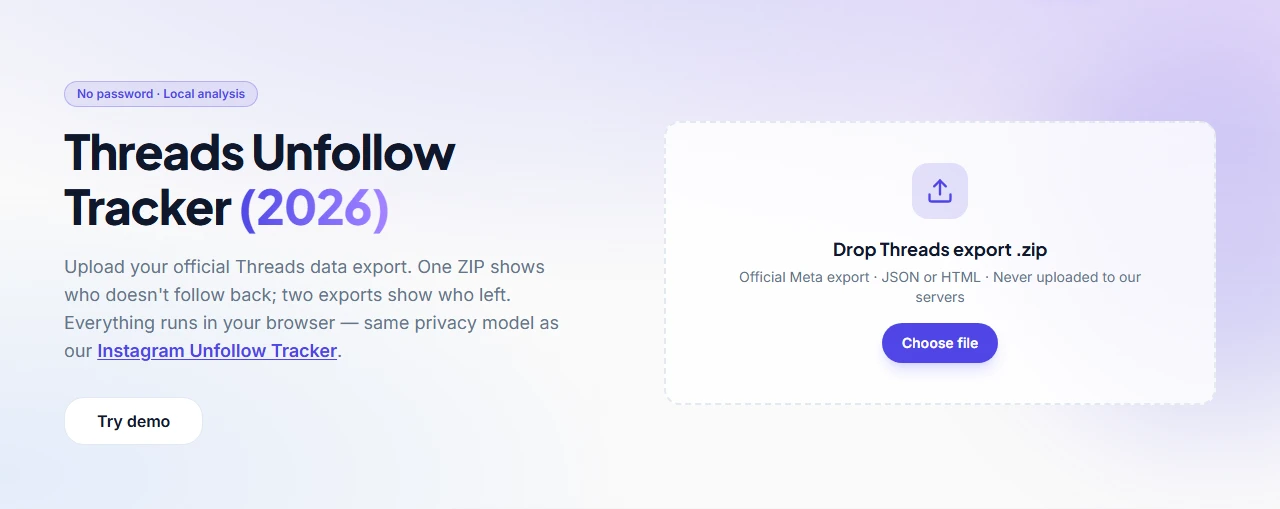
Upload the export. Open the Threads Unfollow Tracker and drop your Meta ZIP on the upload area (or tap Try demo to preview sample results without your own file). Analysis stays on this device — the ZIP is not uploaded to a server.
Once you have two exports from two different dates, the actual comparison is simple in principle. You're only looking for names that were present before and are missing now. The tricky part is doing this accurately once your follower count gets into the hundreds or thousands, where a manual scan starts missing names.
- Open both follower files, one from your older export and one from your newer one.
- Pull out the list of usernames that were following you in the older file.
- Check each of those usernames against the newer file.
- Anyone present in the old list but missing from the new one has unfollowed you in that window.
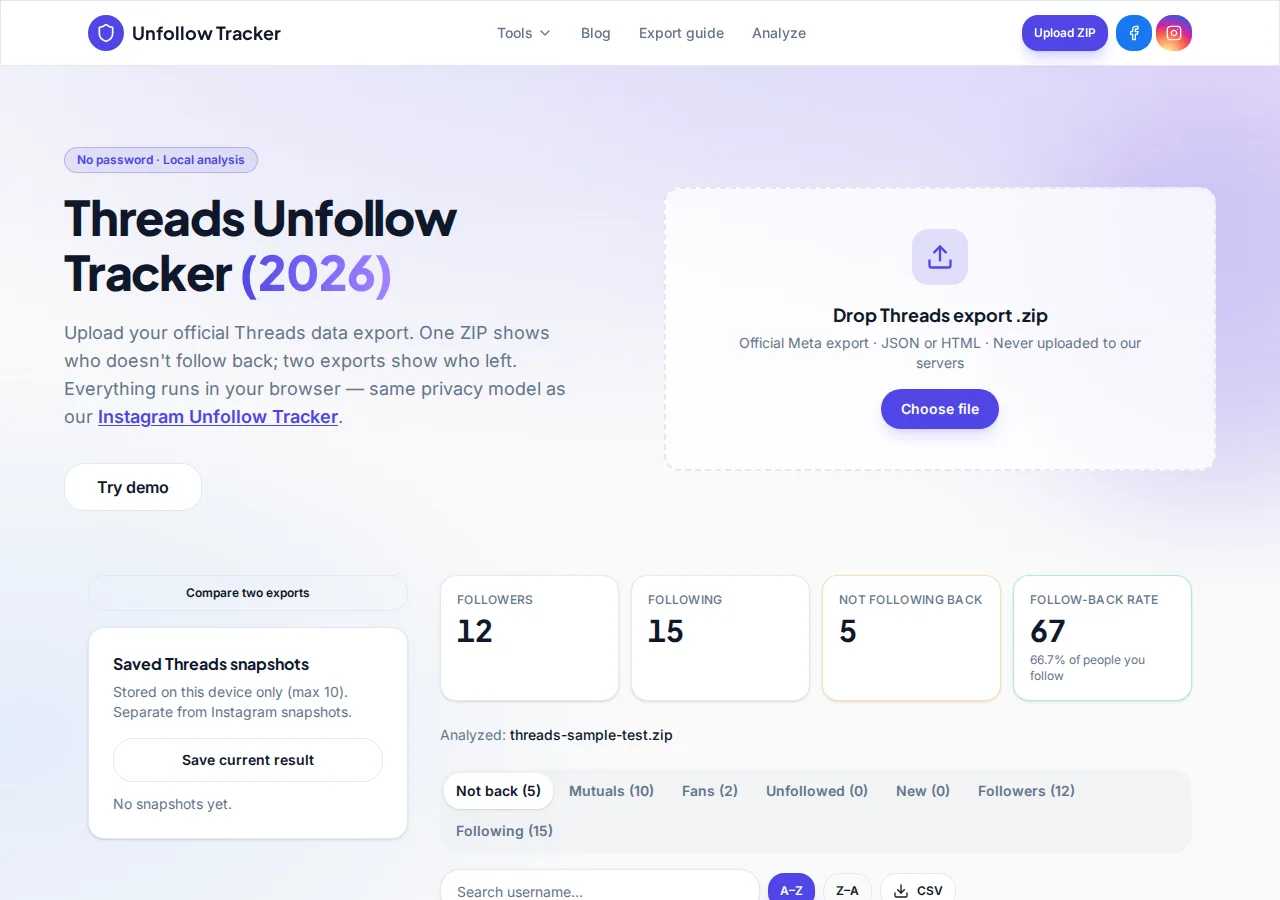
Read the results. After analysis you get stats (followers, following, not following back) plus tabs like Not back, Mutuals, and Fans. Two exports unlock Unfollowed / New history. Search, sort, and CSV export stay local.
Doing this by hand works fine if you only have a few hundred followers. It gets tedious fast once the list grows into the thousands, and it's easy to miss a name or mistype one while scrolling. A free tool that reads both files and runs the comparison automatically in your browser saves that manual work, and keeps your files on your own device instead of uploading them anywhere.
If your export includes a timestamp next to each follower, that field can be genuinely useful too. It tells you roughly when each follow happened, which lets you sort by most recent followers instead of just an alphabetical list. It can also help you spot a batch of people who all followed around the same post or event, which says more about what worked than a raw unfollow count does.
Is a Threads Unfollow Tracker Accurate and Safe to Use?
This part matters more than most unfollow tracker pages are willing to admit. A tool like this is only ever as good as the data you feed it, and it comes with real limits that deserve to be said plainly instead of glossed over. Knowing the limits upfront saves you from reading too much into a result that's actually just a gap in your export timing.
How Accurate Is It?
An export based tracker is only as fresh as your last export. It can't alert you the moment someone unfollows, and it will never catch someone who followed and then unfollowed again between your two exports, since that person never shows up in either file. If you want a real history, export every month or so and keep the old files around so you always have something to compare against.
Is It Safe?
This method never needs your Threads password and never logs into your account through a third party server. Nobody gets notified when you check, since you're only reading a file Meta already built for you and gave you permission to download. That's different from apps that ask for your login credentials directly, something Meta's own terms discourage and that can get an account flagged for unusual activity.
With the same Meta Accounts Center habits you can also check pending Instagram follow requests, style a bio with the Instagram font generator, or browse public Instagram Highlights without logging in.
Frequently Asked Questions
Yes, the export is tied to your own account's data, not to whether your profile is public or private. A private Threads account gets the same follower and following data in its export as a public one.
Usually a few minutes to a few hours for most accounts. Meta's help pages mention a maximum wait of up to 30 days, though that's rare in practice.
No, this method only works with your own export, since you need your own account password to request it. Seeing another account's followers this way would require their login, which no legitimate tool should ever ask you for.
The underlying idea is the same, comparing one export against another, but the file structure isn't guaranteed to match. Instagram's export format is more consistently documented, while Threads exports have shown some inconsistency in file naming across different guides and tools, so a tool built for one usually needs small adjustments before it reads the other correctly.